We have created a new GP company but it is setup for Mekorma Task-Based Security. How can we enable it for Legacy Security to maintain uniformity with existing company databases?
To select the security model you want to use, access the Security Setup window (Mekorma Area Page > Setup > System > Security Setup).
- In the Security Setup window, double-click on the company you would like to configure. This will expand the list of options.
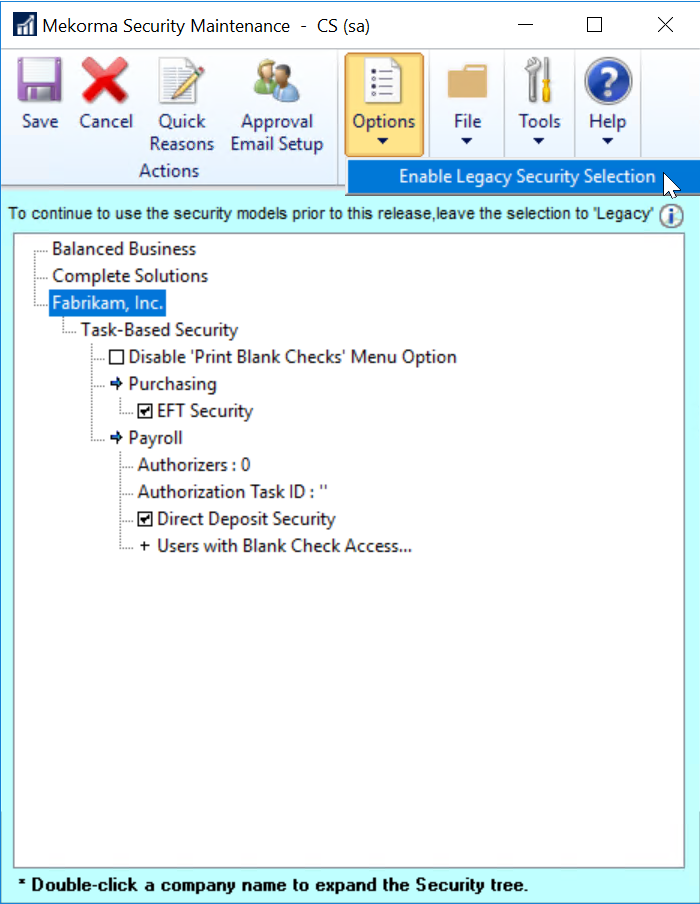
- In the Options menu, select Enable Legacy Security Selection.
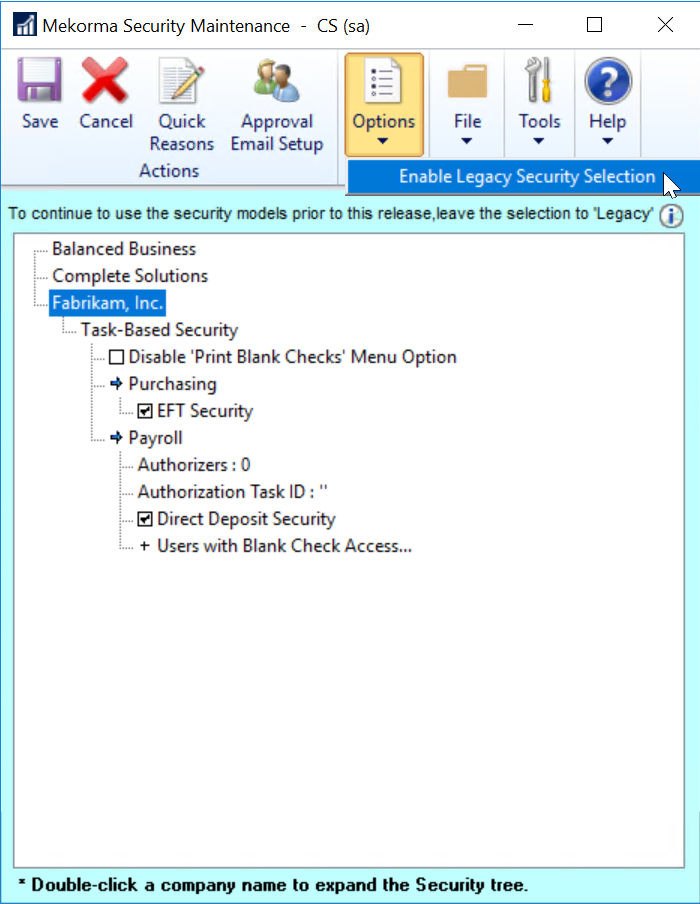
- Task-Based Security is selected by default. Enable Legacy Security by clicking on the corresponding radio button.
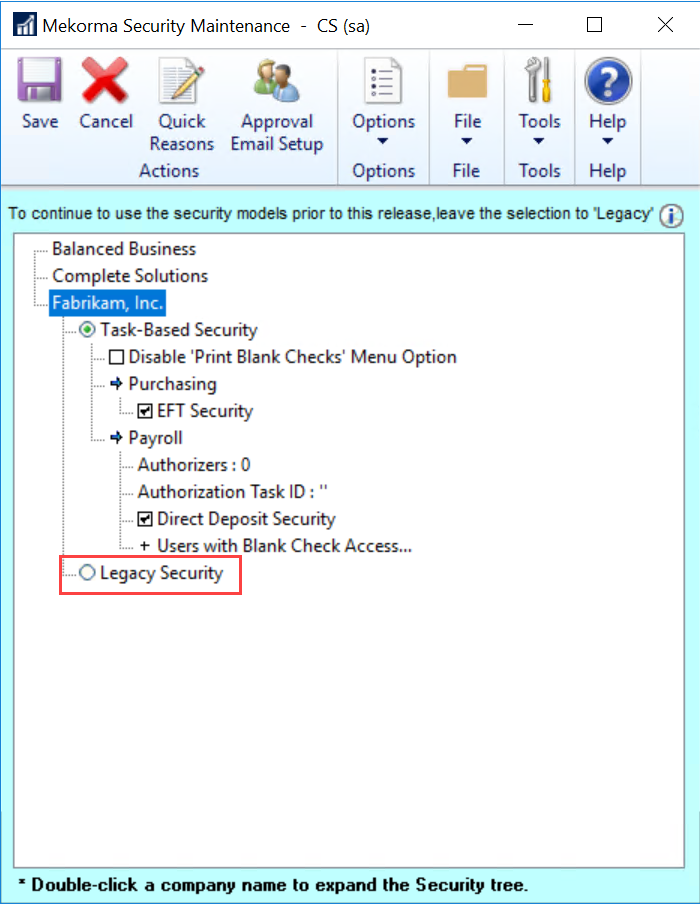
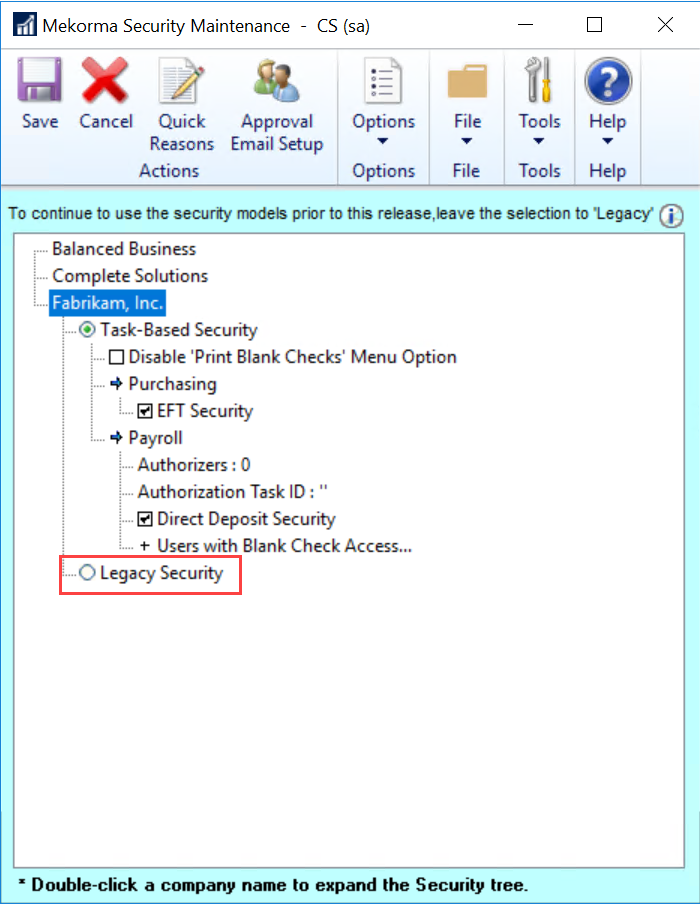
- If Legacy Security is selected, clicking on the Legacy Security hyperlink will open the security configuration window, allowing you to set passwords by user ID, Checkbook, or Standard GP Security (‘None’).
- If Task-Based Security is chosen, clicking on the Task-Based Security hyperlink will take you to the Threshold Maintenance window, where you can configure the Threshold IDs that will later be applied to checkbooks.
- Selecting Legacy Security will warn you that this is a ‘no passwords’ security model. Click OK to continue.
- Click Save. When switching security models, you must log out of Dynamics GP, then log back in for the changes to take effect